From the planner to the pen
Plan a Zwift time trial here and ride it with the TT HUD over the game: the power to hold now, the next change and when it comes, the W′ you have left and the time to go, against the plan. Link the two once and a plan reaches the bike without a code.

- What you need
- Install the mod
- Link the mod to the planner
- Plan your race
- The plan arrives in the HUD
- In the pen
- During the race
- No plan yet? Plan it from the bike
- Dropped, or away on your own? Plan from here
- The other windows
- Settings worth knowing
- Without linking: share codes
- When something is off
- What the link shares
What you need
- Sauce4Zwift 2.0 or later on the computer that runs Zwift (sauce.llc).
- The ZwiftGopher TT mod 0.8 or later (latest release). Linking needs 0.8; 0.7 loads plans by code only.
- A browser for the planner, on any computer, tablet or phone. It does not have to be the Zwift computer: that is the point of linking.
- Your Zwift ID, so the planner can read your power data (or your weight, height and FTP by hand).
Install the mod
- Download the zip of the latest release.
- Unzip it into the
SauceModsfolder in your Documents (create the folder if it is not there), so thatDocuments/SauceMods/zwiftgopher-s4z-mods/manifest.jsonexists. - Restart Sauce for Zwift. Under Settings → Mods, enable ZwiftGopher TT.
- Add a HUD window: right-click the Sauce icon, Windows, and pick TT HUD: strip (or the dial or the stack). Drag it where you want it over the game.
The HUD is clear until you hover it. Hover it for the tray with its buttons; right-click it for Sauce's title bar, which has the settings button.
Link the mod to the planner
You do this once per Zwift computer. Afterwards every plan you optimise in that browser reaches the HUD by itself, within a minute, whenever a HUD window is open and you are not racing.
1. Ask the mod for a pairing code
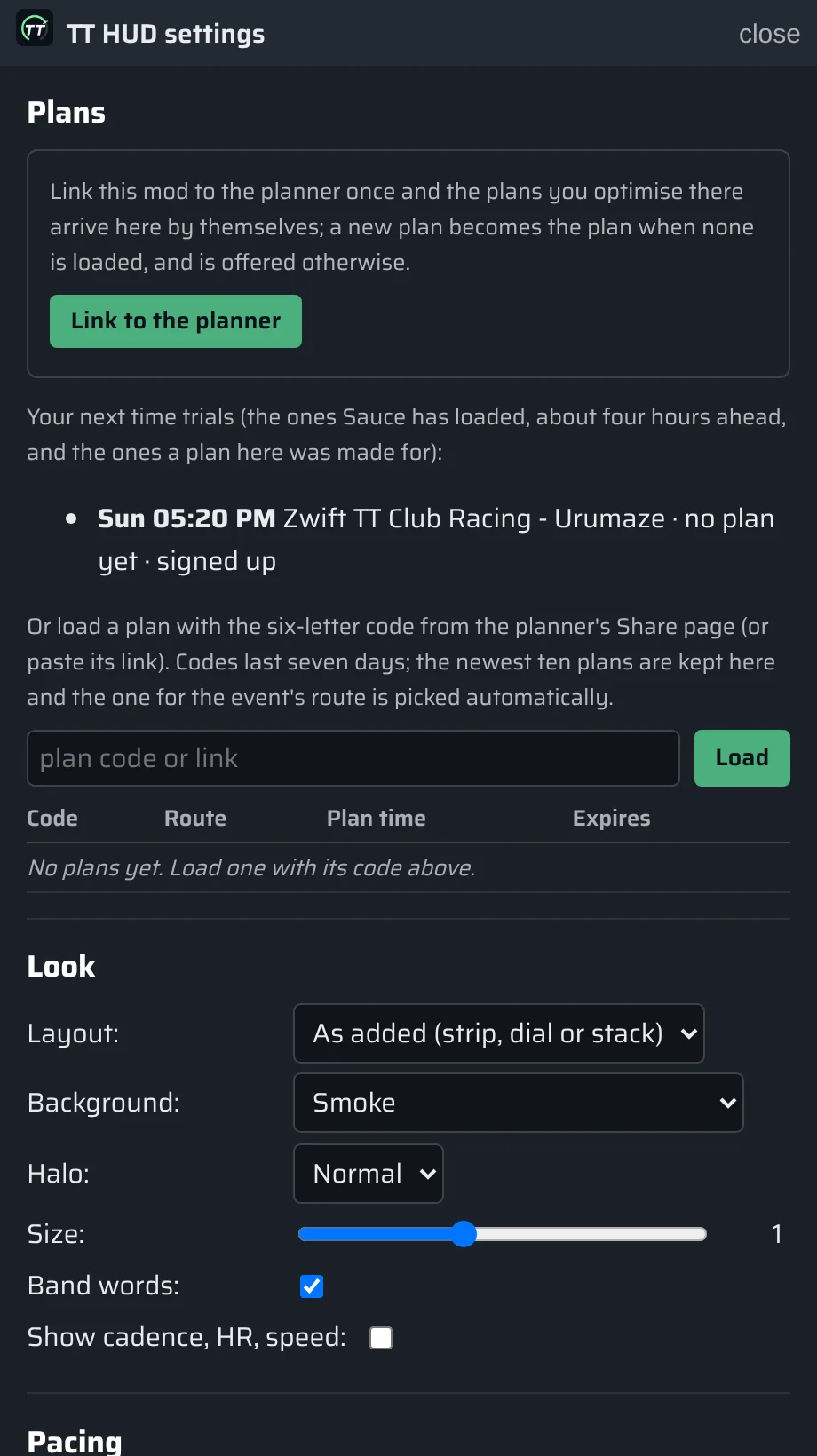
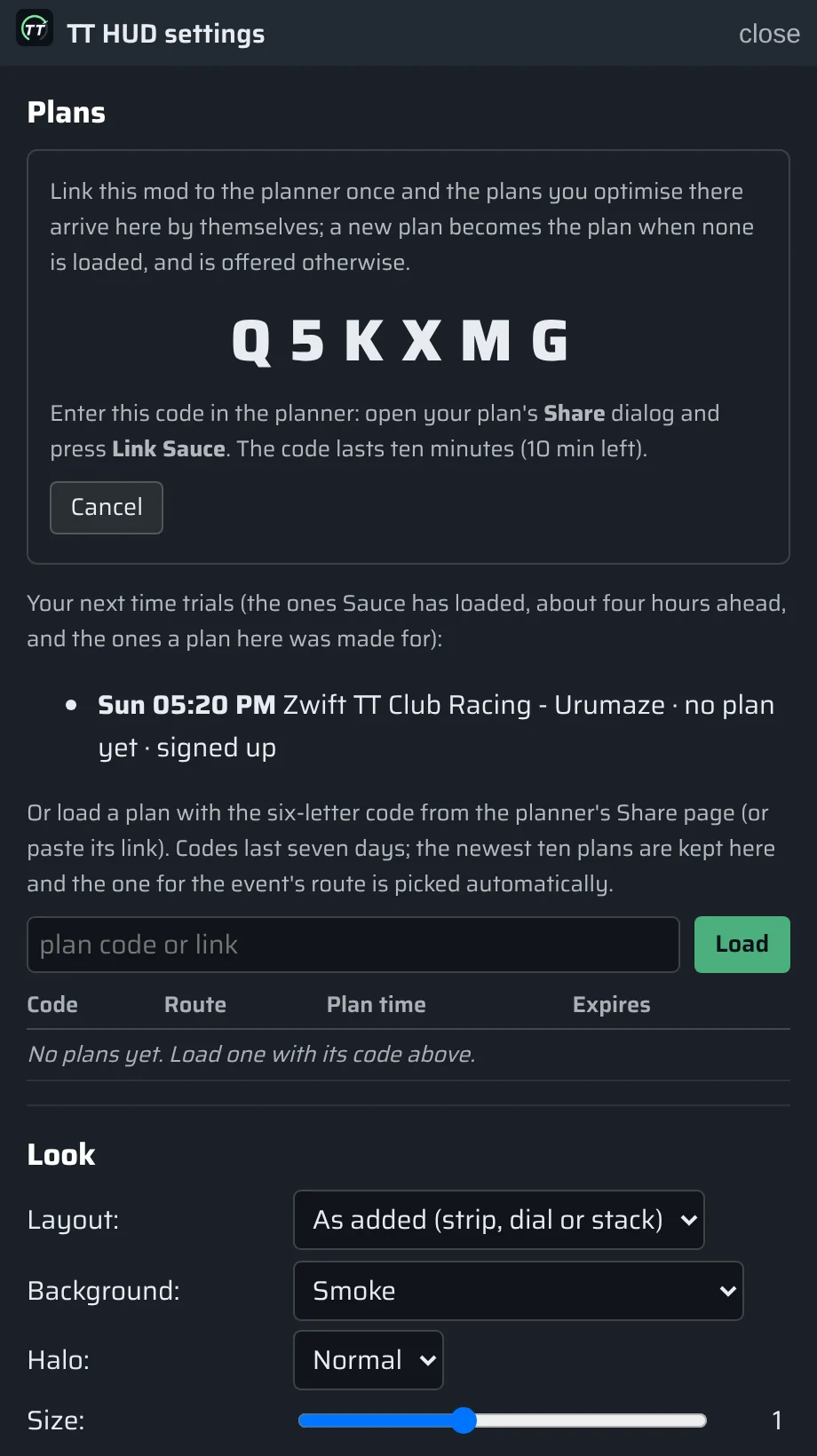
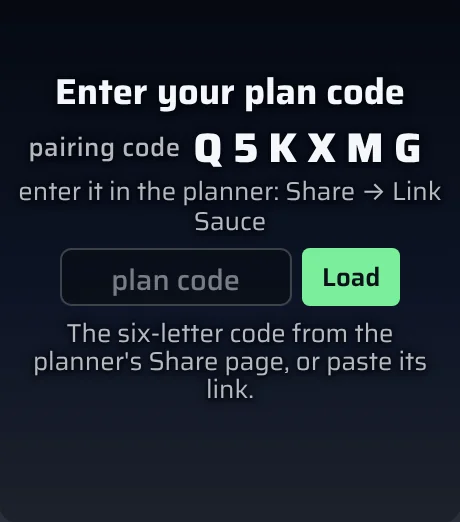
Open the HUD's settings (right-click the HUD, then the gear) and, under Plans, press Link to the planner. Zwift must be running, so the mod knows who you are. A six-letter code appears; it lasts ten minutes. The HUD shows the same code in its plan panel, so you can read it from across the room.
2. Type it into the planner
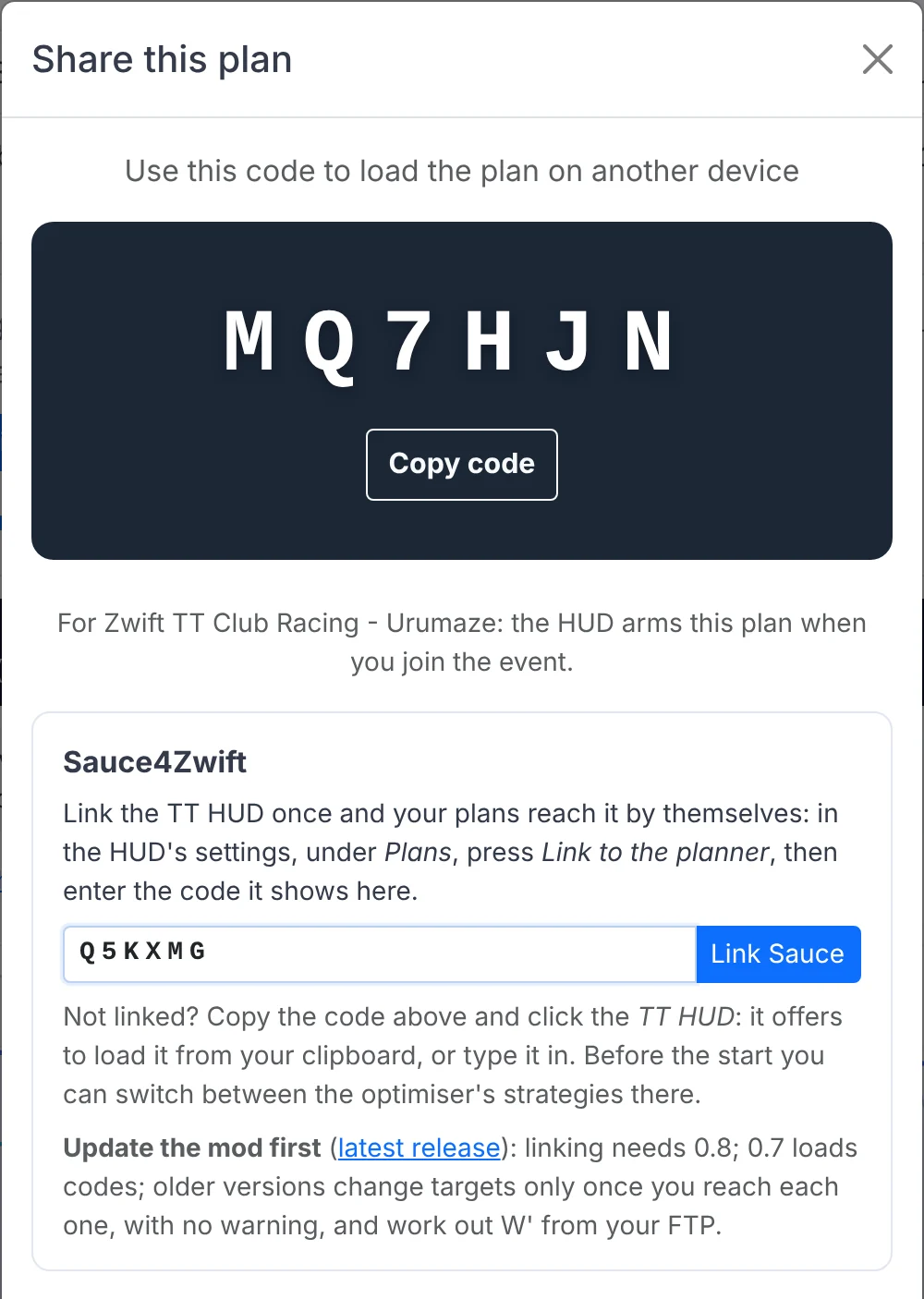
In the planner, with a plan on the page (any draft will do), press Share. In the Sauce4Zwift box, type the code and press Link Sauce. The planner looks you up from your Zwift ID at the same time.
3. Both ends say linked
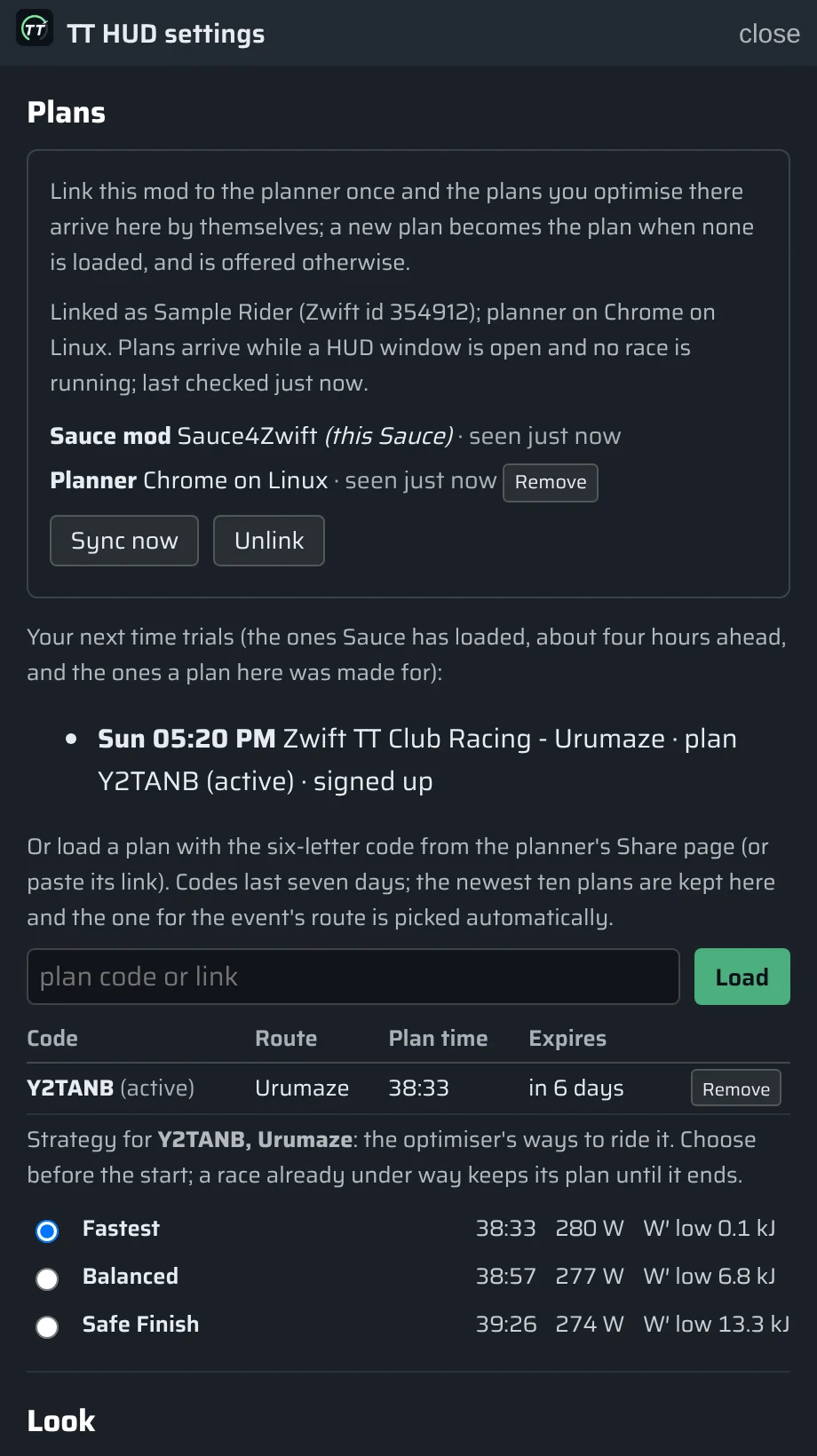
Within a few seconds the mod's settings page says who you are linked as and lists both devices. You can remove a device from either end.
Plan your race
Pick the time trial
Under Course, the Upcoming time trial list shows the next seven days of time trials and no-draft rides, grouped by day, with a search box. The ones you signed up for in Zwift say signed up, once the mod has seen them. Choosing one sets the route and the laps, or the distance for a race by distance, and the plan knows its event from then on.
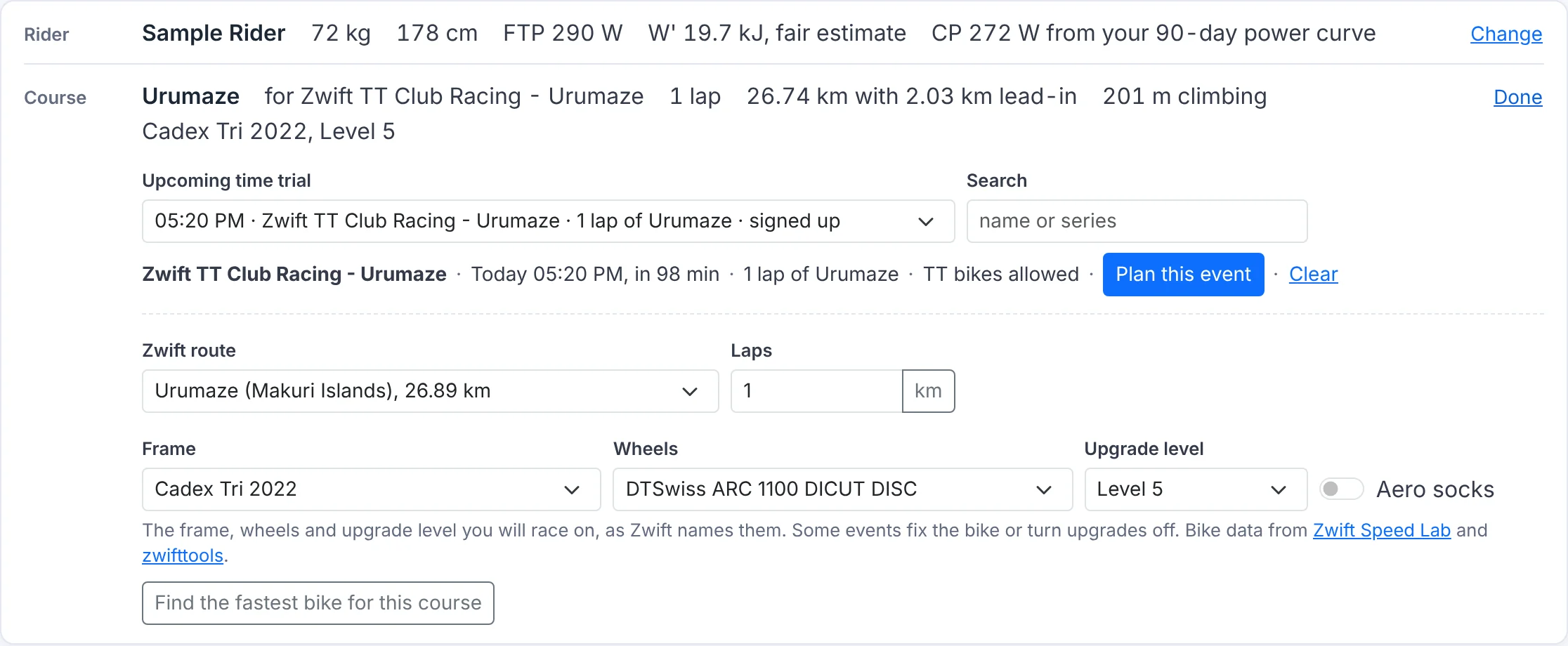
- When the pens ride different courses (a 10/25/50/100 event, say), each pen is its own entry: pick yours.
- An event that allows no TT bikes moves the plan to a road bike; pick your own frame under Course if it differs.
- An entry greyed route not in the planner yet is a brand-new route: plan it once its data arrives, usually the next day.
Optimise
Press Plan this event (or Optimise). In a second or two you have the fastest plan your W′ allows, plus Balanced and Safe versions that keep some reserve. The plan's header names the event it is for.
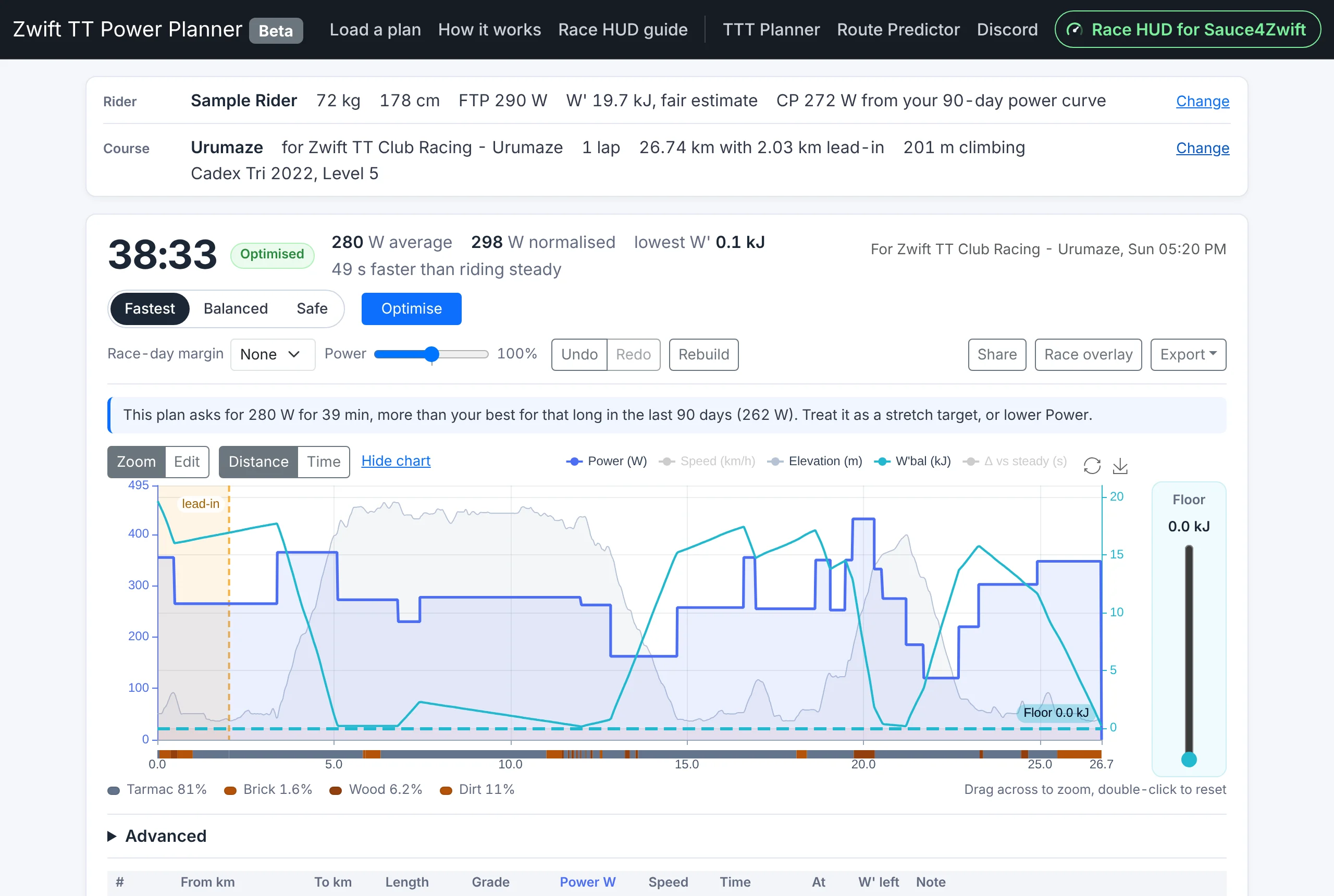
See How it works for what the strategies, the race-day margin, the Power slider and the W′ floor do.
The plan arrives in the HUD
Optimised plans and edits you keep go to Sauce by themselves, a couple of seconds after the last change. The HUD picks them up within a minute while it is open and you are not racing. With no plan loaded, the new one becomes the plan. Open Share again and it says Sauce has it ✓ once the mod has saved it.
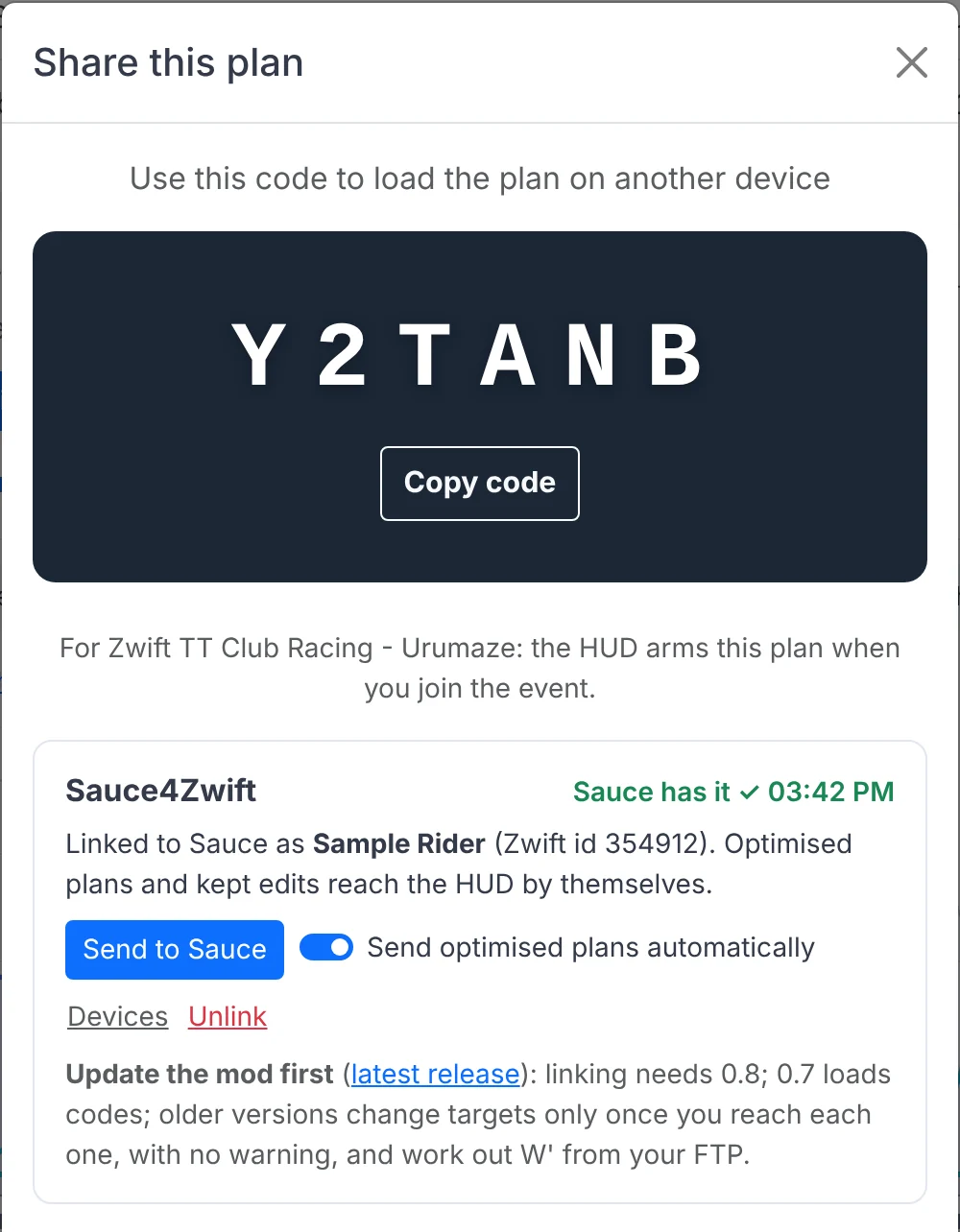


Want to send it now? Send to Sauce does it by hand; switch off Send optimised plans automatically if you would rather choose each time. The HUD's Sync now (settings → Plans) asks at once.
A new plan while one is loaded
If a plan is already loaded, a new one is offered instead of switched in: press Use, or × to keep the one you have. Nothing ever changes while you race.

In the pen
Join the event in Zwift. The HUD arms the plan made for it by itself: the one for your pen, else for the event, else a plan for the same route with the same laps (or within 1% of a race by distance). The banner counts down to the start, and the clock starts when you cross the timing line.

Choose a strategy
Before the start, click the strategy chip in the banner (here fastest) and pick Fastest, Balanced or Safe finish, each with its finish time. Every window switches with it. Once the race starts the choice is locked, so the HUD never changes under you.

During the race
- now
- The target for the interval you are in, with your live power beside it in the band colour: blue ▼ under, green ● on, orange ▲ over.
- next
- The next target, its gradient, and how far and how long until it starts. Ten seconds before the change it turns amber and the countdown pulses; the target switches exactly when the countdown reaches zero.
- W′ left
- Your anaerobic reserve, from the planner's own model run on your live power, with the plan's floor marked. It turns red under 25%, and says below plan when you have spent more than the plan meant to by here.
- to go
- The time left to the finish line at the pace you are riding, and how you compare with the plan: on plan, ahead 0:12, behind 0:40. Rather see the finish time you are on for? Settings → Pacing → Finish shows → Predicted finish time.


The tray
Hover the HUD for the tray: offset nudges the plan ±10 m if its changes come early or late, bias moves every target ±1%, Reset clears this race's statistics, Plan opens the plan panel, and the gear opens the settings.

No plan yet? Plan it from the bike
Signed up and on the bike, but never made a plan? With the mod linked, the HUD's plan panel shows your next time trial with Plan it. In the pen of an event with no plan it reads this event · no plan yet with the same button. The planner builds an optimised plan for that event with your last planner settings, in a few seconds, and the HUD arms it.

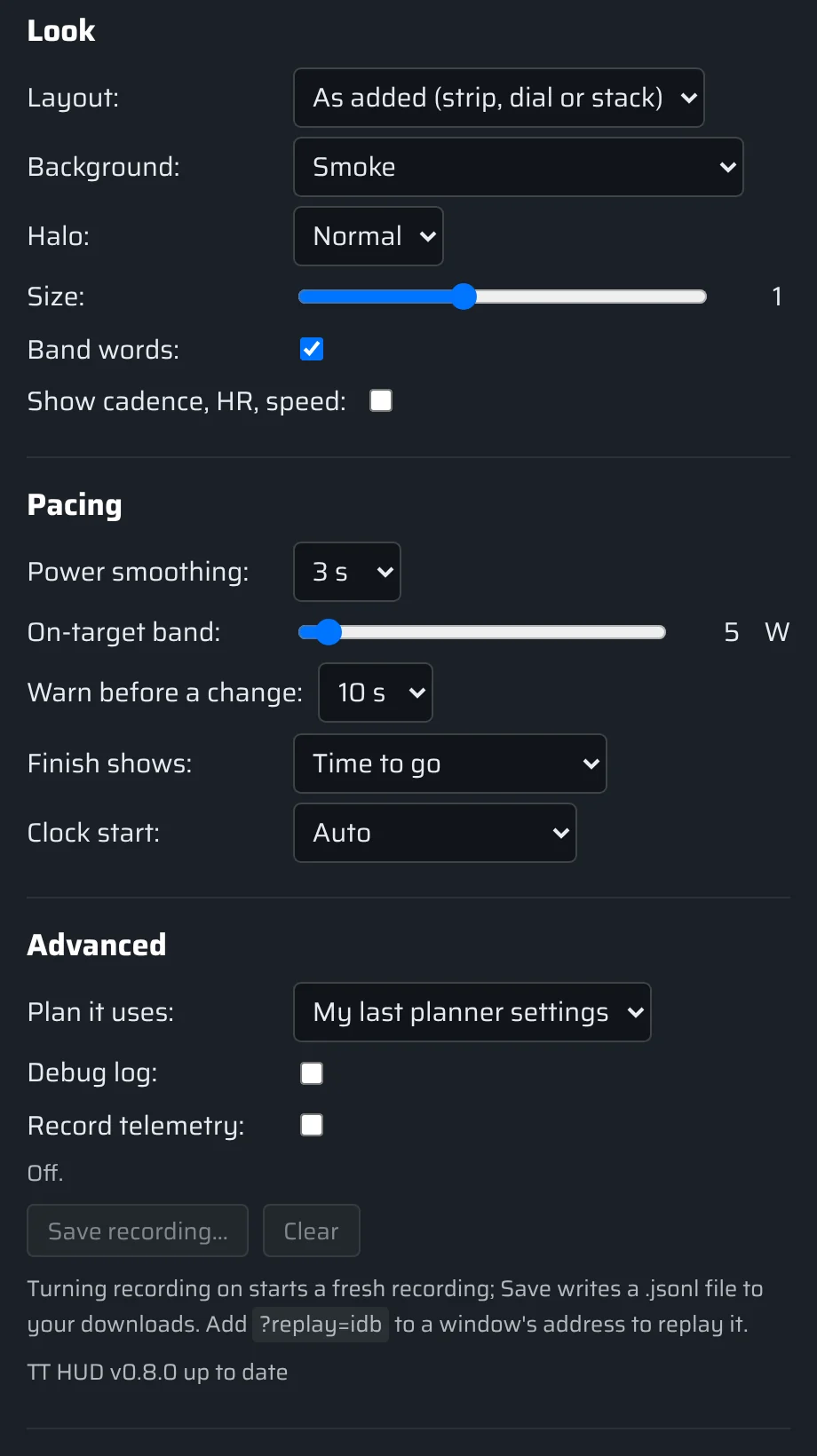
- It plans the way you plan: the settings of the last plan you optimised in the planner (strategy, W′ floor, race-day margin, bike). With none yet it uses the planner's defaults and says so. Settings → Advanced → Plan it uses can force the defaults.
- The plan is yours like any other: open it in the planner later to look at it or tune it (Load a plan lists it under Your plans).
- Six plans an hour and twenty a day. The planner itself has no such limit.
Dropped, or away on your own? Plan from here
Riding with no plan: dropped from the bunch, clear on your own, or on a free ride? With the mod linked, the HUD's plan panel offers Plan from here with how far you have to go: to the finish · 8.6 km in a race, to the end of the lap · 12.3 km on a free ride. The planner plans the rest from where you are, and the HUD rides it at once, measured from the moment you pressed the button.
- It knows what the ride has cost you. Sauce keeps your power for the ride; the planner replays it to find the W′ you have left, and takes your normalised power so far, with the time the rest will take, to work out how much of your CP is left for it. The W′ bar starts where you are, not full.
- A road bike, unless something says TT: a no-draft event, or a race you have ridden with no draft at all (TT bikes get none). Any draft and it is a road bike. Settings → Advanced → Plan from here's bike can say Road or TT for good.
- A free ride needs a route chosen in Zwift: the plan ends where the route's lap does. A race ridden for a time has no finish to plan to.
- The banner says it: from here · road bike, with tired legs when the ride so far has taken some of your CP.
- It belongs to that race or that lap: leave the race or the route and it is put away, and the panel offers another. With a plan already running there is no new one: the tray's bias turns every target down if your legs say so.
- It counts towards the six plans an hour with Plan it.
The other windows
Add any of these from Sauce's window menu. Each one runs on its own, and they always agree.
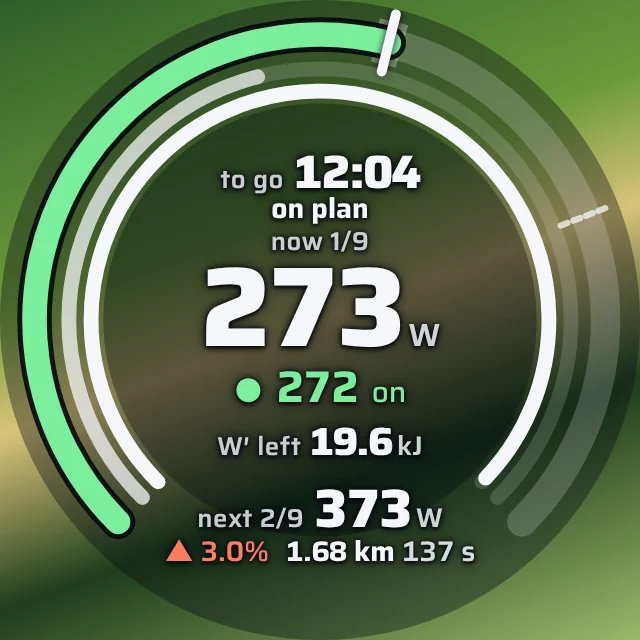
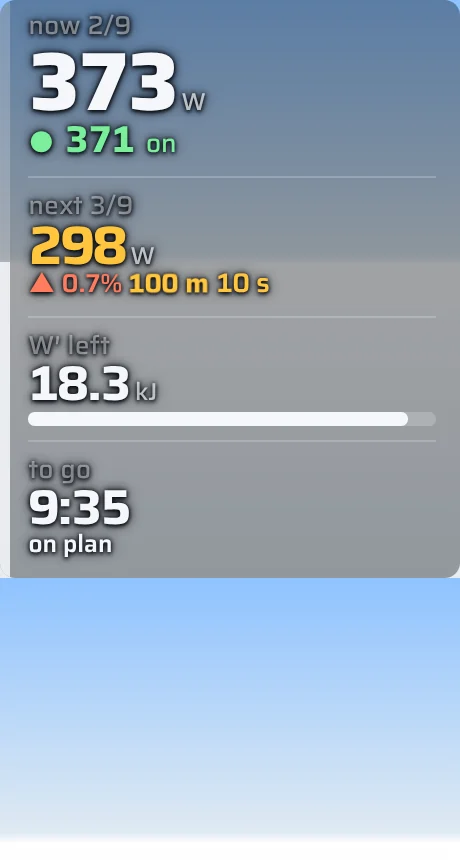
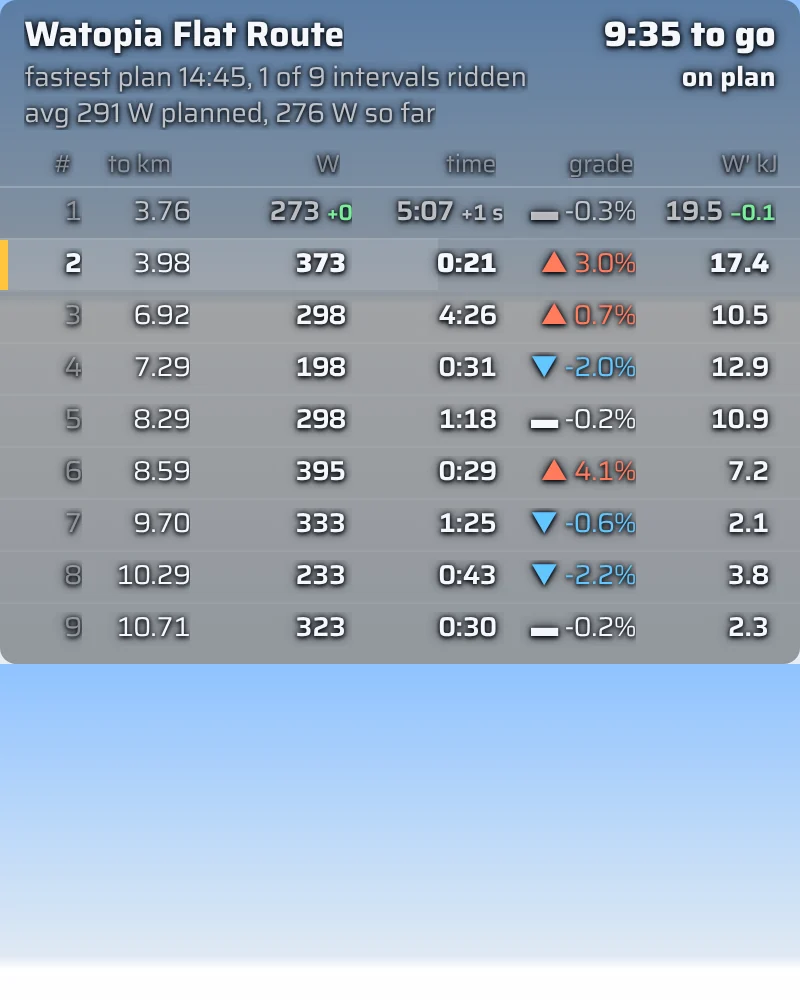
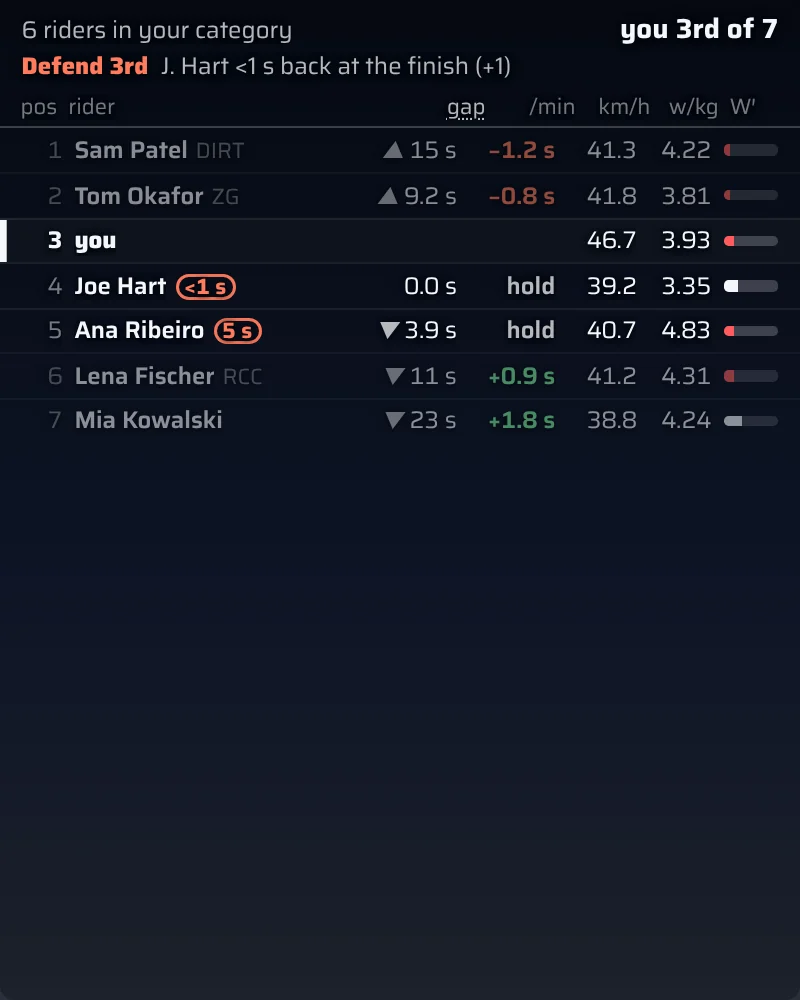

The field and the rivals strip need an event: on a free ride riders have no shared distance to compare.
Settings worth knowing
One settings page serves every window and shows what that window uses (right-click a window, then the gear).
- Plans
- The link, your next time trials, the plans the mod keeps (ten) and the strategy of the active one; a box for a code.
- Look
- The HUD's layout, the background behind the numbers (clear, smoke, dark, solid), the halo that keeps them readable on snow and at night, the size, and cadence, heart rate and speed.
- Pacing
- Power smoothing, the on-target band, the warning time before a change, whether the finish cell shows the time to go (the default) or the predicted finish time, and how the race clock starts.
- Advanced
- Plan it uses, the debug log, and the telemetry recorder (record a race, save it, and it can be replayed without Zwift).
Without linking: share codes
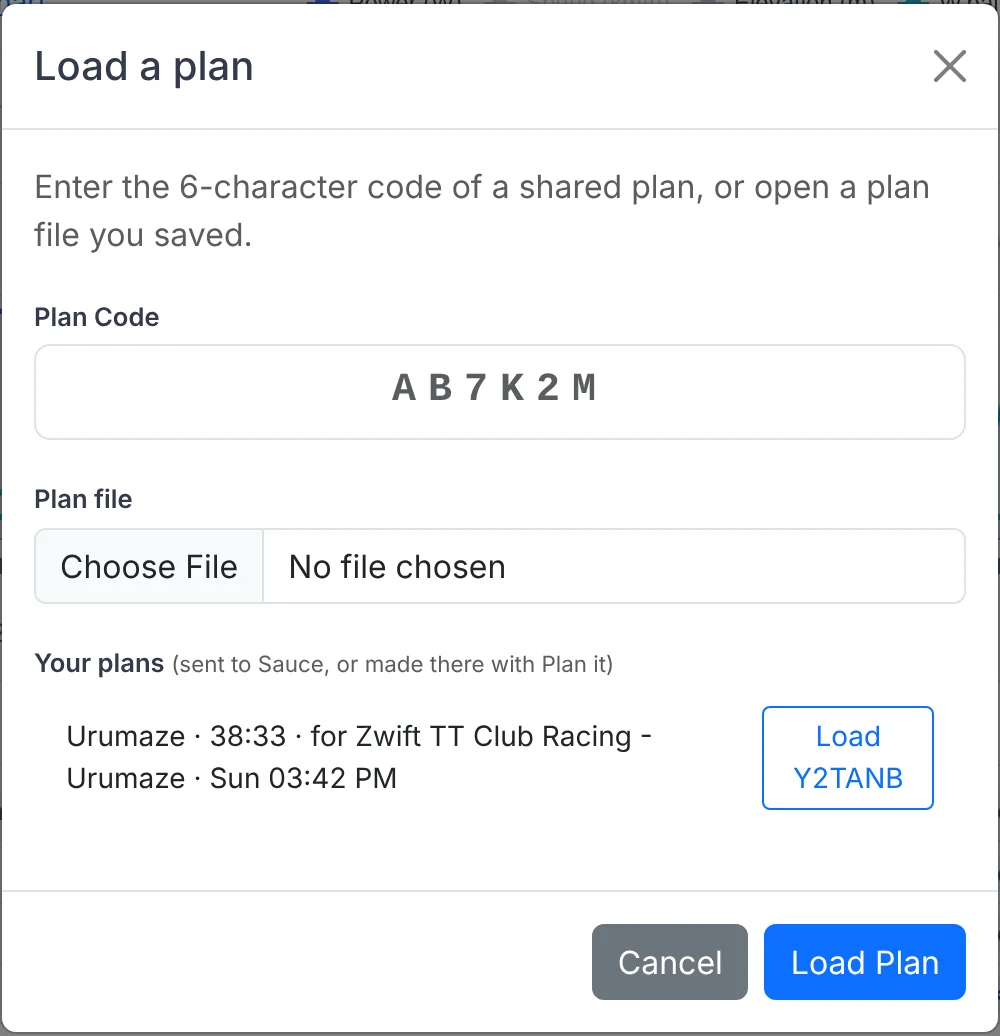
Every plan still has a six-character code, and the mod loads it as before: press Share, Copy code, then click the TT HUD on the same computer. It offers Load with the code from your clipboard, or type it in the plan panel. Codes last seven days; a plan in the mod's library keeps working after that.
In the planner, Load a plan opens a code, a plan file, and, when linked, Your plans: everything sent to Sauce or made there with Plan it.
When something is off
| You see | Try |
|---|---|
| The settings page says the planner does not offer linking yet | The planner side is updated before the mod; until then, use codes. If it persists, tell us on Discord. |
| Sauce does not know who you are yet | Start Zwift and wait until the HUD shows a rider, then press Link to the planner again. |
| No pairing with that code or That code has expired | Check for a typo (there is no 0, O, 1 or I in codes), or ask the HUD for a new code: they last ten minutes. |
| The planner says sent but the HUD has nothing | Open a HUD window: plans arrive while one is open and you are not racing. Press Sync now in the settings to ask at once. |
| The HUD did not arm the plan when you joined the event | The plan was not made from the event picker, or the course differs (laps, distance). Pick the event in the planner and optimise again, or choose the plan in the HUD's plan panel. |
| Next TT shows nothing although you signed up | Sauce knows events about four hours ahead. Earlier than that, plan the event in the planner: the HUD then shows it from your plans. |
| Plan it says busy or rider data unavailable | Wait a few seconds and press again. Plan it retries once by itself. |
| The targets change early or late compared with the road | Use offset in the tray (±10 m). The HUD switches at the plan's boundaries on purpose; the amber warning is yours to act on. |
What the link shares
Linking stores your Zwift ID and name as the mod reports them, the devices you linked (a name like Chrome on Windows and when each was last seen), and the plans you send, which hold the rider numbers the plan used (weight, CP, W′). The mod also reports the time trials you signed up for, so the planner can mark them. Only the linked devices can read any of it, with the token each holds; the server keeps only a hash of each token. Unlink on either side and that device's access ends at once. When no device is left, the link's devices and sign-ups are deleted within a month, and its plans expire like any share code (seven days, or two days after their event).